
You’ve finalised the perfect design for your new merch. You send the file to your printer, excited to see it come to life. Then, the dreaded reply: “File rejected. We need a vector.” It’s a frustrating roadblock that leaves you worried your final products will look blurry, pixelated, and unprofessional. If you’re tired of JPGs getting rejected and confused by the difference between file types, you’re in the right place. The secret to a flawless, professional finish every single time is simple: you need to vectorize your artwork.
This is your no-nonsense guide to getting it right. We’ll show you exactly what a vector file is and why it’s the non-negotiable standard for high-quality printing on t-shirts, hoodies, and more. You'll learn how to get a print-ready file that guarantees crisp, clean results on every single item. And the best part? You don’t need to be a graphic designer or spend hundreds of pounds on complex software. Let's get your design ready for production.
Why Your JPG or PNG File Isn't Ready for Printing
You have a great design saved as a JPG or PNG, and you’re ready to create some killer custom merchandise. But hold on. That standard image file you have is the number one reason for poor-quality prints. Before your design can be professionally printed, you almost always need to vectorize it first.
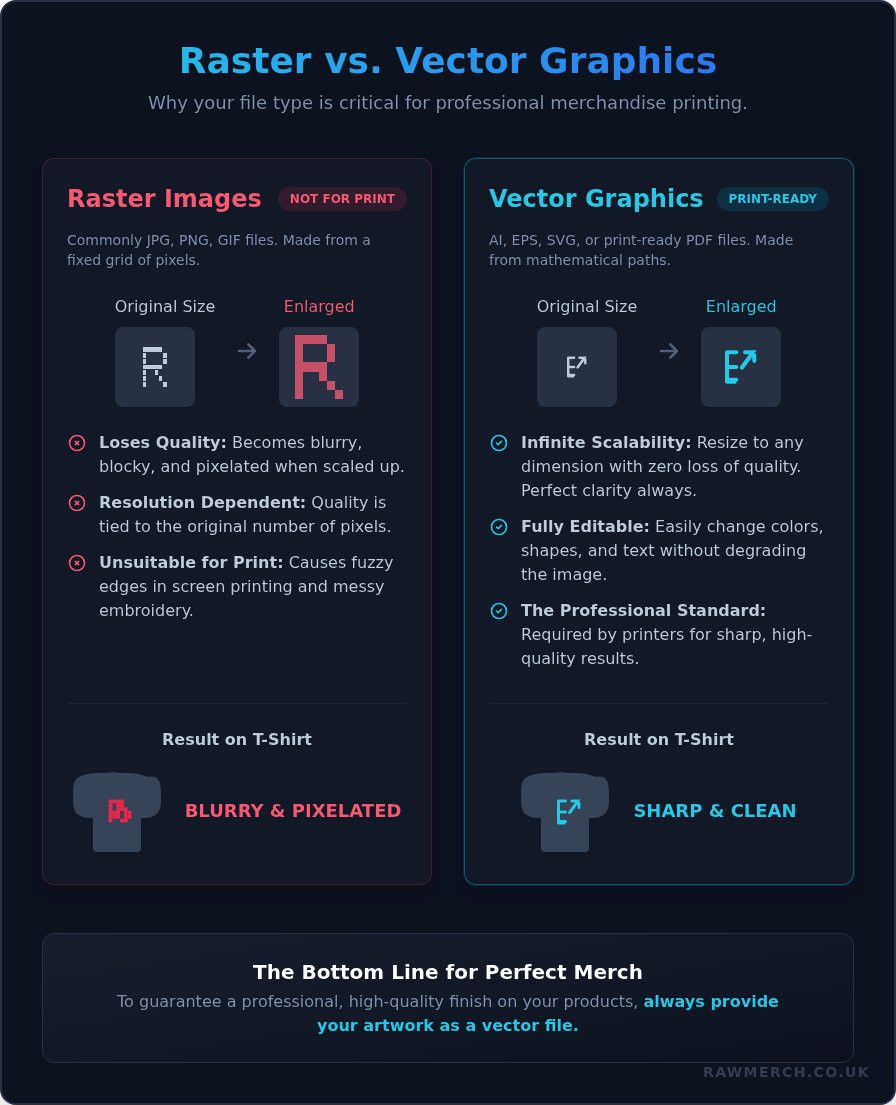
The core problem is pixelation. Common image files like JPG, PNG, and GIF are raster images. Think of them as a detailed mosaic made from a fixed grid of tiny coloured squares, or pixels. They look great at their original size, but the moment you try to scale them up for a T-shirt, the computer simply enlarges those fixed pixels. The result? A blurry, blocky mess with jagged edges.
[Image: A small raster logo looking sharp, next to the same logo enlarged, showing heavy pixelation and blurry edges.]
This blurriness is a disaster for professional printing. For screen printing or embroidery, fuzzy edges mean the machinery can't create the clean, sharp lines your design needs. It’s the difference between a professional product and a cheap-looking amateur attempt.
Raster vs. Vector: The Critical Difference
Understanding the difference between raster and vector files is essential. As we covered, raster images are resolution-dependent; their quality is tied to the number of pixels they contain. Vector files are completely different. Instead of a pixel grid, vector graphics are built from mathematical equations that define points, lines, and curves. This means they are infinitely scalable. You could stretch a vector logo to the size of a building, and it would remain perfectly crisp and clear.
[Image: Side-by-side comparison showing a raster logo pixelating when enlarged, while a vector version of the same logo stays perfectly sharp.]
How File Type Affects Print Quality
The right file format is not just a preference; it's a requirement for high-quality results. Here’s why your artwork must be in a vector format:
- Screen Printing: This method requires clean, solid shapes to create a separate screen for each colour. A blurry raster edge makes this impossible, resulting in a fuzzy, low-quality print.
- Embroidery: Embroidery machines need precise, smooth paths to create stitch patterns. A pixelated file provides a jagged, unclear path, leading to messy and unprofessional stitch work.
The bottom line is simple: professional merchandise demands professional artwork. To get the sharp, clean results your brand deserves, you need to start with a high-quality vector file. It's the only way to guarantee your design looks as good on fabric as it does on your screen.
What is Vectorization? Turning Pixels into Paths
Vectorization is the essential process of converting a pixel-based image (like a JPG or PNG) into a mathematical, path-based vector graphic. This isn't a simple 'save as' command; it's a complete recreation of your design. The goal is simple: to create a perfectly clean, infinitely scalable master file that's ready for professional printing. When we ask for your artwork, we need one of these industry-standard vector formats: AI (Adobe Illustrator), EPS, SVG, or a print-ready PDF.
Getting this right is the difference between a blurry, amateur-looking print and a sharp, professional product. We know what you want, and a vector file is the first step to getting it.
The Benefits of a True Vector File
A properly vectorized file is the gold standard for a reason. It gives you total control and guarantees a flawless print every single time. Here’s why it’s non-negotiable for quality merch:
- Infinite Scalability: Resize your design for a small chest logo or a massive banner with zero loss of quality. No jagged edges or pixelation, ever.
- Easy Editability: Need to change a colour, tweak a shape, or resize one element? Vector files are layered, making edits quick, clean, and simple.
- Smaller File Sizes: Vectors are often more compact than the high-resolution raster images needed for print, making them easier to email and manage.
- The Professional Standard: This is the format we, and any other serious printer in the UK, require to produce the crisp, sharp lines your design deserves.
What to Expect from the Vectorization Process
So, how do you vectorize an image? The process involves meticulously tracing the original design's outlines to create clean, mathematical paths. This can be done in two ways: automatically using software, or manually by a skilled designer.
While automatic tracing is fast, the results are often messy and inaccurate. For a professional finish, nothing beats manual tracing. A designer’s eye can interpret complex shapes, clean up messy lines, and deliver a far superior result. While understanding the technical details of image resolution for printing is vital for raster images, vectorization solves the problem entirely. The final output isn't a flat image; it's a layered, fully editable file built for precision and perfect prints.
How to Vectorize an Image: 3 Methods for Every Budget
So, you have your design. Now you need to get it ready for printing. Don't worry if you're not a graphic designer. We'll break down the three main ways to vectorize an image, from the quick-and-easy to the guaranteed professional result. Let's find the right path for your project and budget.
Method 1: The Quick Way (Automated Tools)
Dozens of websites offer instant, AI-powered vectorization. You upload your raster image (like a JPG or PNG), and their software automatically traces it into a vector file. It’s the fastest option available.
- Pros: Extremely fast, often free or very cheap (under £10). Can work for ultra-simple, one-colour shapes.
- Cons: The results are often messy and inaccurate. The AI struggles with gradients, fine lines, and complex details, creating jagged edges and sloppy paths that are unsuitable for professional printing.
Verdict: A risky gamble for merchandise. Use it for a quick preview, but don't rely on it for your final print file.
Method 2: The Pro Way (DIY with Software)
This is how the professionals do it. Using software like Adobe Illustrator, you have two options: the automated 'Image Trace' tool or manual tracing with the Pen Tool. Image Trace offers a one-click starting point, but manual tracing gives you absolute precision over every single line and curve. For a deep dive into the automated feature, Adobe provides an official guide to Image Trace that can help you get started.
- Pros: You have complete control over the final vector file. It's the industry standard for creating high-quality, print-ready art.
- Cons: It requires expensive software (Adobe subscriptions start around £20/month) and a significant time investment to learn the tools properly.
Keep in mind that professional design software runs best on a powerful computer. If you're considering upgrading your hardware for design work, looking at guides for high-performance PCs, like those on tunewtec.com, can provide a useful starting point, as gaming configurations are often ideal for demanding graphics tasks.
For enthusiasts who appreciate both high-performance hardware and the classics that inspired today's demanding graphics, you can read more about the world of retro gaming.
Method 3: The Smart Way (Hire a Pro)
For most people, this is the best choice. It balances cost, time, and quality perfectly. You get a professional result without the headache of learning complex software. This is the most reliable way to get a file you can send straight to a printer.
- Where to look: Freelance platforms like Fiverr and Upwork have thousands of designers specialising in this.
- What to ask for: Request a 'manually traced vector file' in both .AI (Adobe Illustrator) and .EPS formats.
- Pros: Guaranteed professional quality. It saves you hours of frustration and is surprisingly cost-effective, typically costing between £15 - £50 for a standard design.
Getting a pro to handle the technical details ensures your artwork is perfectly prepared for printing. It’s the kind of quality file we love to work with at RAW Merch to produce incredible custom clothing.
Checklist: Preparing Your Vector File for Your Printer
You've done the hard work to create or vectorize your design. Now it's time for the final, crucial step: ensuring your file is truly print-ready. At RAW Merch, we know exactly what's needed for a flawless print run. Getting these details right from the start means a faster turnaround and a final product that looks exactly as you imagined. This checklist covers the essentials our print team looks for every single time.
Convert All Text to Outlines
This is non-negotiable for professional printing. Converting text to outlines (or 'creating outlines' in Adobe Illustrator) turns your fonts into fixed shapes. Why is this so important? If you send a file with live text and we don't have that specific font installed, our system will substitute it with a default one, completely changing your design. Outlining your text locks it in place, guaranteeing it prints perfectly.
Clean Up Your Paths and Points
A high-quality vector file is defined by its clean paths and minimal anchor points. Automated tracing tools often create a messy web of hundreds of unnecessary points, which can result in jagged lines or printing errors. A professionally created vector has smooth, precise curves. Take a moment to delete stray points and simplify complex paths. This ensures the clean, sharp finish you expect from custom merchandise.
Define Your Colours Correctly
Colour accuracy is key. For screen printing, we work with the Pantone Matching System (PMS) to ensure the ink colour on the garment is an exact match to your design. Your vector file should use solid spot colours, not process (CMYK) colours. Each spot colour represents a single ink screen. Avoid gradients unless you've specifically discussed a specialised printing technique with us, as standard screen printing works with solid blocks of colour.
Following these steps ensures your artwork is primed for production. It’s the final quality check that separates an amateur design from a professional, print-ready file.
Have your artwork ready? Let's create your custom merch!
From Pixels to Perfect Prints: Your Next Step
You've learned the essentials: why pixel-based files lead to disappointment and how vectorization is the key to sharp, scalable graphics for any product. By following our guide, you can confidently prepare a design that looks as good on a t-shirt as it does on your screen. The power to create professional-quality merchandise is now in your hands.
The final step is partnering with a printer who respects your hard work. You need a team that understands the details. With over 25 years of printing experience, we provide expert advice for bands, brands, and businesses across the UK. We know what you want, and we deliver on time, every time.
Now that you know how to vectorize your image and get it printed, let's bring your vision to life. Got your vector file? Get your no-obligation quote now!
Frequently Asked Questions
Can't I just save my JPG as a PDF or EPS to make it a vector?
No, this is a common mistake. Saving a raster file like a JPG as a PDF or EPS doesn't convert the image. It simply places the pixel-based image inside a vector file container. The artwork itself remains made of pixels and will still become blurry or jagged when enlarged for printing. True vectorization requires manually redrawing the image with mathematical paths to ensure it is infinitely scalable and print-ready.
How much does it typically cost to have a logo vectorized by a designer?
In the UK, the cost to have a designer vectorize your logo depends on its complexity. For a simple design with clean lines, you can expect to pay between £20 and £50. For more intricate artwork with many details, colours, or complex shapes, the price could range from £60 to over £150. Always get a specific quote based on your image for an accurate price before committing to the work.
What is the best vector file format for t-shirt printing?
The best and most reliable vector formats for professional t-shirt printing are AI (Adobe Illustrator), EPS (Encapsulated PostScript), and SVG (Scalable Vector Graphics). A high-quality PDF saved from vector software also works perfectly. These formats ensure your design can be scaled to any size without losing quality, which is essential for creating crisp, clean prints. We always recommend providing an AI or EPS file for the best results.
Can you vectorize a complex photograph?
While a photograph can be vectorized, it will not look like the original image. The process simplifies the photo into solid blocks of colour and defined shapes, creating a stylized, illustrative effect. This can be a cool artistic style for a t-shirt, but it is not suitable if you want a photorealistic print. For printing actual photos, a high-resolution raster file (like a TIF or PNG) is the correct choice.
My logo looks fine on screen, why does it need to be a vector for printing?
Your screen displays images at a low resolution (usually 72 DPI), which is fine for digital viewing. Professional printing requires a much higher resolution (300 DPI or more). A raster logo that looks sharp on your monitor will appear pixelated and blurry when scaled up for a t-shirt. A vector file is made of mathematical paths, not pixels, allowing it to be enlarged to any size with perfectly crisp edges every time.
Does RAW Merch offer a service to vectorize my artwork for me?
Yes, we do. Getting your artwork print-ready is a key part of our service. If you have a low-resolution JPG, PNG, or other raster file, our expert team can professionally vectorize it for you. This guarantees a flawless, high-quality finish on your custom merchandise. Simply send us your file when you make an enquiry, and we’ll provide a no-obligation quote to get the job done right.