
There’s nothing more frustrating than seeing your brilliant design idea ruined by a bad print. Blurry logos, mismatched colours, and rejected files can turn an exciting project into a costly headache. The secret to avoiding these problems isn't complicated-it all comes down to preparing the right artwork for printing. You’ve got the vision, and we have the expertise to make sure it’s executed perfectly, every single time.
In this ultimate guide, we’re cutting through the technical jargon. Forget confusing terms like DPI, vector, or CMYK. We’ll give you a simple, no-nonsense checklist to ensure your designs look crisp, vibrant, and professional on any piece of custom merchandise. Get ready to prepare your files with total confidence, avoid expensive mistakes, and make the printing process smooth and simple. Let's get it done right.
Key Takeaways
- Choose the right file type from the start. Your design's scalability from a t-shirt to a banner depends on it.
- Master the four core technical settings for your artwork for printing to avoid costly reprints and delays.
- Tailor your design to the specific printing method-what works for DTF may not work for screen printing.
- Learn the top artwork mistakes we see every day. A few simple checks will save you time, money, and frustration.
The Foundation: Understanding Vector vs. Raster Artwork
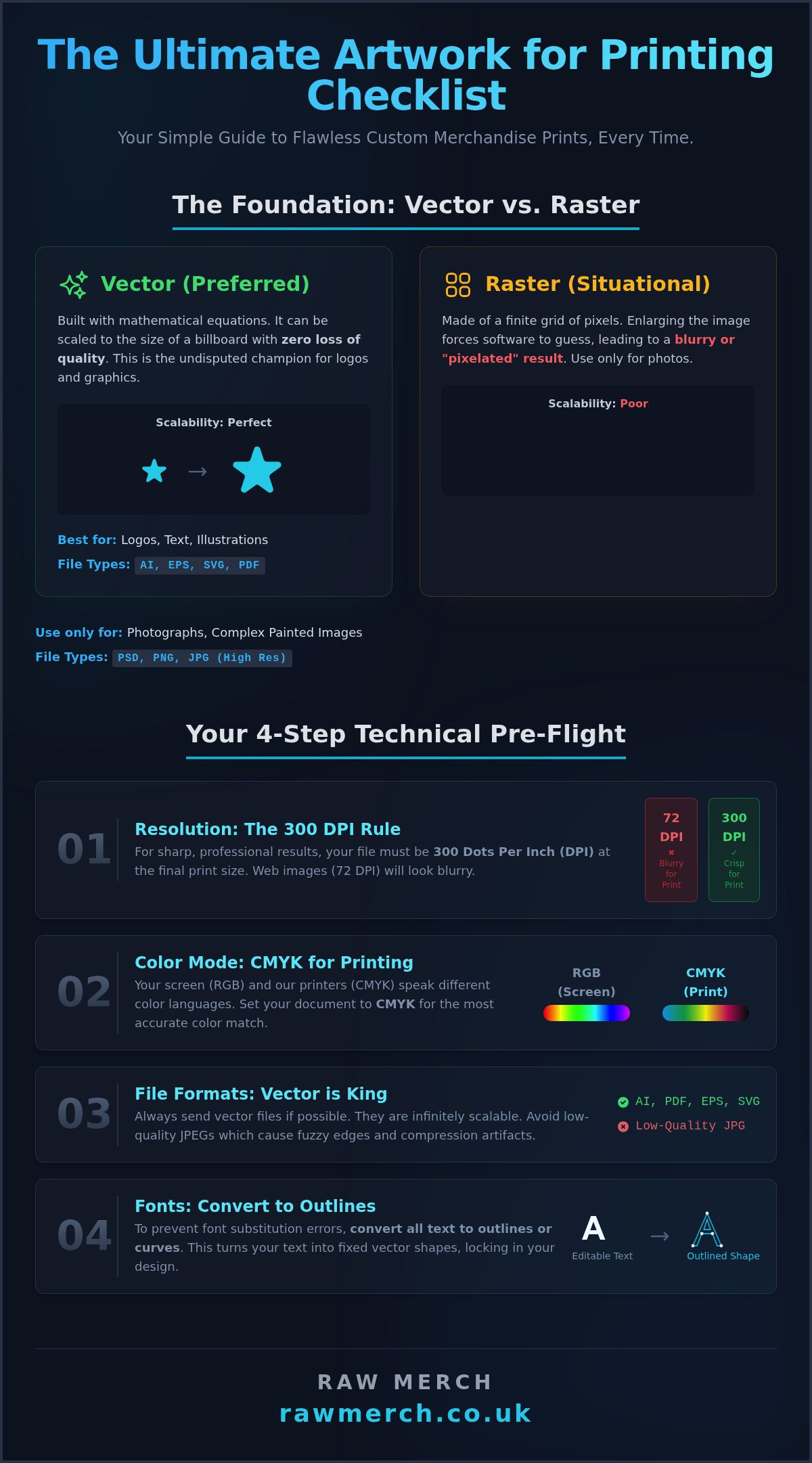
Before you even think about colours or garments, you must get this one thing right. The format of your digital artwork is the single most critical factor in achieving a sharp, professional print. Get it right, and your design will look incredible. Get it wrong, and you’re setting yourself up for blurry, pixelated results. This is the first and most important step in preparing your artwork for printing.
Think of it this way: digital art comes in two fundamental types. One is like a mosaic, built from thousands of tiny squares. The other is like a mathematical formula, which can be drawn perfectly at any size.
What is Raster Artwork? (JPG, PNG, PSD)
What is Vector Artwork? (AI, EPS, SVG, PDF)
Vector artwork isn't built from pixels. Instead, it uses mathematical equations to create lines, points, and curves. The core difference in Understanding Vector vs. Raster is this scalability. Because it’s a formula, a vector graphic can be scaled to the size of a postage stamp or a billboard with absolutely zero loss of quality. This makes it the undisputed champion for logos, text, and illustrations that need clean, crisp lines every single time. Printers love vector files for this reason.
Which Format is Best for Your Merch Project?
The choice is simple once you know the difference. We make it easy for you with a straightforward rule: if your design is not a photograph, it should be in a vector format. This ensures maximum quality and flexibility for any print job.
- Vector (AI, EPS, SVG): The absolute best choice for logos, typography, and graphic illustrations. Always supply these if you have them.
- Raster (JPG, PNG, PSD): Use only for photographic or complex painted images. If you must use a raster file, ensure it is saved at a minimum of 300 DPI at the final print size.
Your Technical Checklist: Getting File Specs Right Every Time
Get these four technical settings right, and you’ll avoid 90% of common printing problems. This isn't just jargon; these specs are the difference between professional custom merch and a costly, disappointing mistake. Follow this checklist to ensure your artwork for printing is perfect, every time. We deliver on time, and that starts with a file we can use immediately.
Resolution and DPI: Avoiding the 'Blurry Print' Nightmare
DPI means 'Dots Per Inch'-it’s the density of ink dots a printer places on the material. The golden rule for sharp, professional results is 300 DPI at the final print size. Web images are typically 72 DPI, which looks fine on a screen but will print blurry and pixelated. Always check your file's resolution in your design software (like Photoshop or Illustrator) before exporting. Don’t let low resolution ruin a great design.
Colour Mode: The Truth About CMYK vs. RGB
Your screen and our printers speak different colour languages. Screens use RGB (Red, Green, Blue) light to display images. Printers use CMYK (Cyan, Magenta, Yellow, Black) ink to create them. This is why colours can look brighter on your monitor than on a finished t-shirt. To get the most accurate colour match, always set your document’s colour mode to CMYK from the start. This simple step ensures what you see is as close as possible to what you get.
File Formats: The Best Files to Send Your Printer
The file you send us matters. For the best quality, we need specific formats. Vector files are king because they can be scaled to any size without losing quality. If you're unsure of the difference, this guide on Vector vs. Raster Images is a fantastic resource. We strongly prefer these file types:
- Vector (Preferred): AI, PDF, EPS, SVG
- Raster (High-Resolution Only): PSD, TIFF, or a high-quality PNG with a transparent background.
Avoid sending low-quality JPG files. Their compression ruins sharp lines and creates fuzzy edges, making them a poor choice for quality merchandise.
Fonts and Outlines: The Most Common Rookie Mistake
This is the most common error we see. If you use a special font in your design and we don't have it installed, our computers will substitute it with a default one-completely changing your design. The fix is simple: convert all text to outlines or curves before saving your final artwork for printing. This action turns your letters into fixed vector shapes, locking them in place and guaranteeing your typography prints exactly as you designed it.
Matching Your Artwork to the Printing Method
Different printing techniques demand different artwork specifications. A design that looks incredible with one method might fail completely with another. Understanding the process is the first step to creating a better design and getting the result you want. We get straight to the point and cover the main methods we use to create your custom merchandise, so you can optimise your artwork for printing perfectly.
Artwork for Screen Printing
Screen printing is a classic for a reason, but it has specific rules. This method works by pushing ink through a stencil (or screen), one colour at a time. For the best results, your artwork must be prepared correctly.
- Use Spot Colours: Your design must be made of solid, separated colours. Each colour requires its own screen.
- Vector is Essential: We almost always require vector artwork (AI, EPS, or SVG files). This allows us to scale your design without any loss of quality.
- Fewer Colours, Lower Cost: Since each colour adds another screen and print run, designs with fewer colours are significantly more cost-effective. Keeping it simple can save you money (£).
- Avoid Gradients: Standard screen printing cannot reproduce gradients or photographic details. Stick to bold, solid shapes.
Artwork for DTF (Direct to Film) Printing
DTF is the go-to solution for vibrant, full-colour designs. This modern technique prints your design onto a special film, which is then heat-pressed onto the garment. It’s perfect for detailed graphics, illustrations, and even photographs.
For DTF, high-resolution raster files are king. We need a minimum of 300 DPI to ensure your print is sharp and clear. These professional standards are universal; even top-tier publishers follow strict technical requirements, as detailed in the Smithsonian guidelines for preparing artwork for their publications. Always supply your artwork for printing in CMYK colour mode with a transparent background for the most accurate results.
Artwork for Embroidery
Embroidery isn't printing-it's stitching. This unique process requires us to convert your artwork into a digital stitch file, a process called 'digitizing'. Your design is essentially redrawn with stitches.
To ensure a clean, high-quality finish, you must simplify your design. Bold lines, clear shapes, and legible text work best. Avoid extremely fine details, tiny text, and complex gradients, as these elements do not translate well into thread. Don't worry about the technical side; we handle the digitizing to create a stitch pattern that brings your design to life on any product.
Ready to go? If you have questions about your files, the experts at rawmerch.co.uk are here to help.
Top 4 Artwork Mistakes and How to Easily Avoid Them
Over our 25 years in the business, we’ve seen it all. The same simple mistakes can delay orders, increase costs, and lead to serious frustration. Getting your artwork for printing right from the start is the single best way to ensure a fast, smooth process and a final product you'll love.
Master these four simple checks, and you’ll not only save yourself time and money, but you'll also become a printer's favourite client. Get your order processed faster by avoiding these common hurdles.
Mistake #1: Using a Low-Resolution Image from the Web
You can't just right-click and save a logo from a website for your merchandise. Web images are optimised for screens at 72 DPI (dots per inch), which looks blurry and pixelated when printed. For sharp, professional results, print requires a minimum of 300 DPI. Always track down the original, high-quality source file-usually a vector file (.ai, .eps, .pdf) or a high-resolution raster file (.psd, .tiff).
Mistake #2: Not Outlining Your Fonts
This is a critical step that preserves your brand identity. If you use a unique font in your design and don't outline it (convert it to shapes), our systems will substitute it with a default font we have on file. This one simple action ensures your text looks exactly as you designed it, every single time. Need perfect prints? Let's create your merch!
Mistake #3: Forgetting About Bleed and Safe Zones
Ever seen a sticker or flyer with an unwanted white edge? That’s because it had no bleed. A 'bleed' is where you extend your background colour or design 3mm past the final cut line. This gives a small margin for mechanical trimming variations. At the same time, keep all important elements like logos and text inside the 'safe zone'-at least 3mm in from the cut line-to ensure nothing vital gets chopped off.
Mistake #4: Submitting a Flattened File with a Background
A transparent background is absolutely vital when preparing artwork for printing on apparel. If you submit a JPEG or a flattened file with a white background for a black t-shirt, you will get exactly that: your design printed inside a solid white box. To avoid this, always submit a PNG file with transparency enabled or, even better, a layered vector file. This allows us to print only your design, directly onto the fabric.
Bring Your Perfect Artwork to Life
Mastering your artwork for printing is the first step to incredible custom merch. By understanding the critical difference between vector and raster, nailing your file specifications, and matching your design to the right print method, you've conquered the biggest hurdles. You now have the knowledge to avoid common pitfalls and ensure your design looks as sharp and vibrant on a t-shirt as it does on your screen.
Now that your design is prepped, the final step is partnering with an expert who can do it justice. At RAW Merch, we live and breathe this stuff. With over 25 years of hands-on printing experience, we are the trusted UK experts in screen printing, DTF, and embroidery. We know exactly what it takes to get your project right, and we have a rock-solid reputation for delivering on time, every time.
Got your artwork ready? Get a no-obligation quote!
Your vision is ready. Let's make it a reality.
Frequently Asked Questions
Can I use artwork I created in Canva for professional printing?
Yes, but you must export it correctly. For professional results, use Canva Pro to download your design as a 'Print PDF' with a CMYK colour profile. This is crucial for colour accuracy. Also, ensure your original design canvas was set to 300 DPI (Dots Per Inch) from the start. Standard Canva exports are often low-resolution RGB files (like JPG or PNG) which are unsuitable for high-quality merchandise and can look pixelated or have incorrect colours when printed.
What is the absolute best file format for t-shirt printing?
Without a doubt, the best file format is a vector file, such as an AI, EPS, or SVG. Vector graphics are made of mathematical paths, not pixels. This means we can scale your design to any size-from a small chest logo to a full-back print-with zero loss of quality. The lines will always be crisp and sharp. For complex, full-colour images like photographs, a high-resolution (300 DPI) transparent PNG is the next best option.
How can I check the DPI resolution of my image file?
It's easy to check. On a Windows PC, right-click the file, go to 'Properties', then the 'Details' tab. You'll see the DPI listed under 'Image'. On a Mac, open the image in Preview, go to 'Tools' in the menu bar, and select 'Show Inspector'. The 'Image DPI' will be displayed. For perfect prints, you are always looking for a resolution of 300 DPI at the final print size. Anything less will likely result in a blurry finish.
Why do the colours on my printed merch look different from my computer screen?
Your computer screen and our printers speak different colour languages. Screens use an RGB (Red, Green, Blue) light-based model, which creates bright, vibrant colours. Professional printers use a CMYK (Cyan, Magenta, Yellow, Black) ink-based model. When we convert your RGB file to CMYK, some colours will shift because the CMYK range is smaller. To see the most accurate preview, always design your artwork for printing in a CMYK colour profile from the very start.
My designer is asking if I need Pantone colours. What does that mean?
Pantone (PMS) is a universal colour matching system. Think of it like a paint swatch book for printing ink. It guarantees that the specific shade of a colour-for example, your exact brand blue-will be identical across every single item we print for you. This is essential for brand consistency. If you don't use Pantone colours, we mix CMYK inks to get as close as possible, but slight variations can occur between print runs. Pantone ensures perfection every time.
What does it mean to 'convert text to outlines' and how do I do it?
Converting text to outlines (or creating outlines) turns your text into a vector shape. This is vital because if you send us a file with a font we don't have installed, our computers will substitute it with a default font, completely changing your design. Outlining locks the text's appearance permanently. In Adobe Illustrator, simply select your text box and press Shift+Ctrl+O (Windows) or Shift+Cmd+O (Mac). Your text is now a solid shape, ready for printing.
Will you fix my artwork for me if it's not print-ready?
We always check your files before we go to print. If we spot minor issues, we'll let you know. For more complex fixes-like converting low-resolution files, removing backgrounds, or vectorising a logo-our design team can help. This is an additional service, with prices starting from £25. To avoid extra costs and delays, we strongly recommend following the guidelines in this article to prepare your artwork for printing correctly from the beginning. Get it right, get it fast.